
Pages
Your PDF and Word documents come out on the paper of your region, A4 or Letter, with generous margins of 2.5 cm. Most documents never need more than that. When one does, a single shortcut gets you there.
Page setup
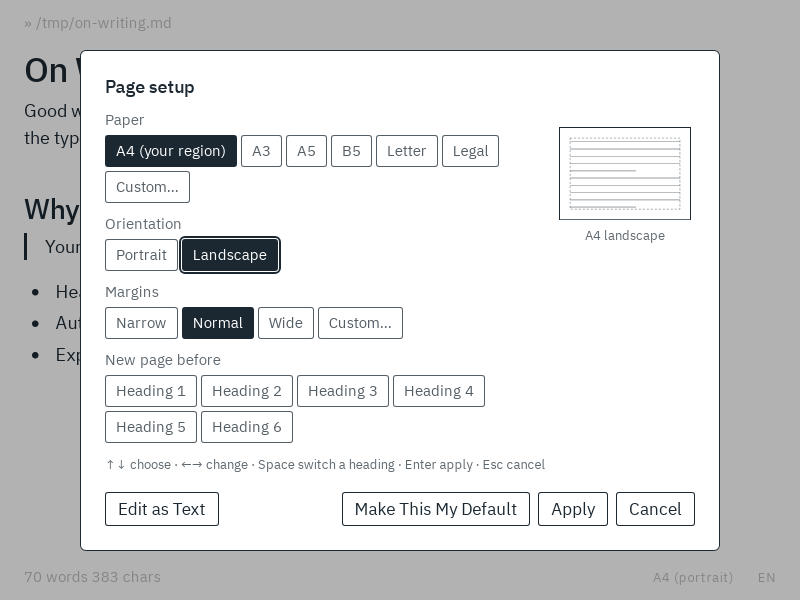
Press Mod Alt U, click the paper in the bar at the bottom (e.g. A4 (portrait)), or choose Page Setup… from the menu (right-click or Shift F10).
| Setting | Choices |
|---|---|
| Paper | the paper of your region, A3, A4, A5, B5, Letter, Legal, or any size |
| Orientation | portrait or landscape |
| Margins | narrow (1.27 cm), normal (2.5 cm), wide (3.5 cm), or your own |
Everything works from the keyboard: ↑ ↓ move between the settings, ← → change one, Enter applies and Esc leaves everything as it was. The picture of the page follows every change, so you see what you get before you apply it.
For your own size or margins, choose Custom… and type them below. Numbers are in centimetres, or in inches where Letter paper is used, and you can also write the unit, like 25mm or 1in.
Changed your mind? Mod Z undoes the whole page setup at once.
Page numbers, headers and footers
Point at the bottom edge of the window and click # Page numbers: every page of your PDF and Word document now has its number at the bottom center. That's it.
For more, point at the top or bottom edge and click + Header or + Footer, or press Mod Alt H for the header and Mod Alt F for the footer. A strip opens right there, with a place on the left, in the center and on the right. Click one and type, or use the buttons below it:
- # Page number puts in the number of the page. Its menu offers 3, Page 3, 3 of 12 and Page 3 of 12, numbers in the style 1, 2, 3, i, ii, iii or I, II, III, and Start At… for the number of the first page, e.g. 0 to leave a title page uncounted.
- Title and Author put in the document's title and author, which follow the properties. Without a title, the first heading is the title.
- Chapter puts in the chapter a page belongs to: the first heading 1 on the page, or else the last one before it. A running head, as in books.
- Date puts in the date of the export, and File the name of the file.
- Remove clears the header or footer on every page.
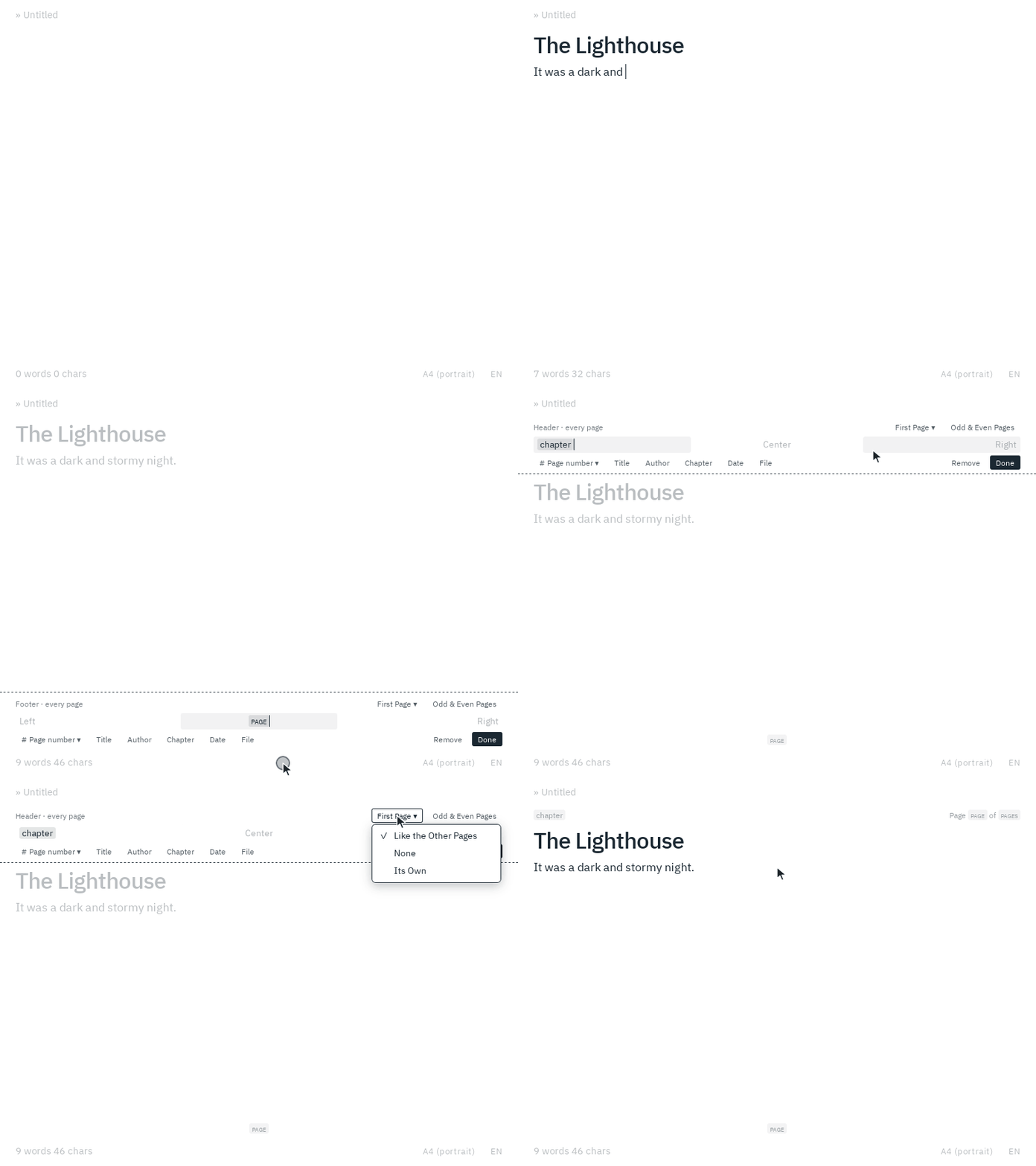
Tab moves to the next place and on to the buttons. Enter, Esc or a click anywhere in your text is done. While you write, the header and footer stay quietly at the edges of the window, so you always see what your pages carry. A click on one opens it again, and Mod Z in your text undoes the whole change.
The first page and even pages
Above the places, First Page ▾ chooses what the first page has: the same as the other pages, None, e.g. for a title page, or Its Own, e.g. a letterhead with your address on the first page and just the page number after it.
Odd & Even Pages gives the left and right pages of a book their own header and footer. The even pages start as the odd ones mirrored, so the page numbers sit on the outside, and Mirror Odd Pages mirrors them again after a change. As in Word, a page counts as even by the number it shows.
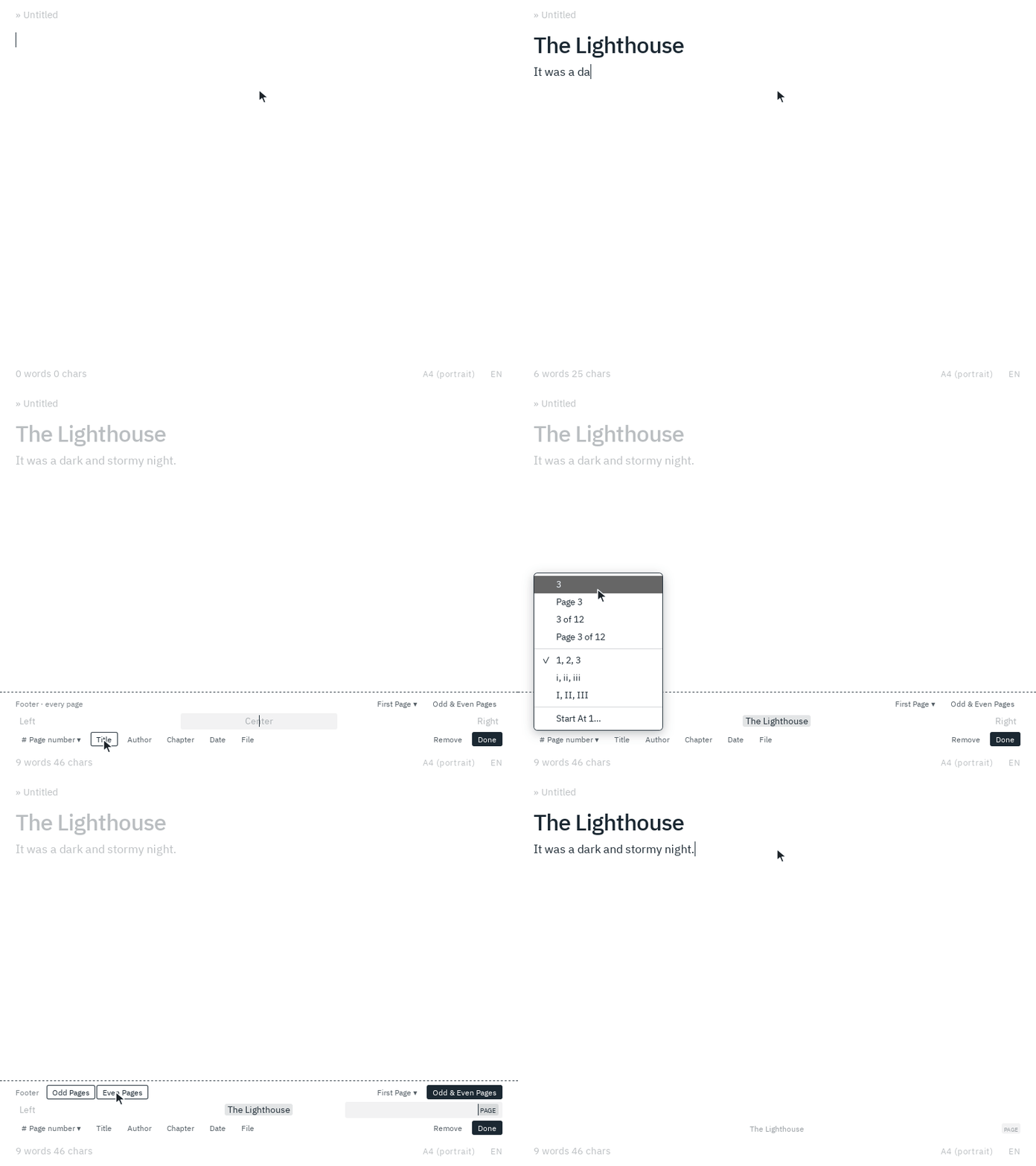
When the first or even pages have their own, tabs above the places switch between them.
Page breaks
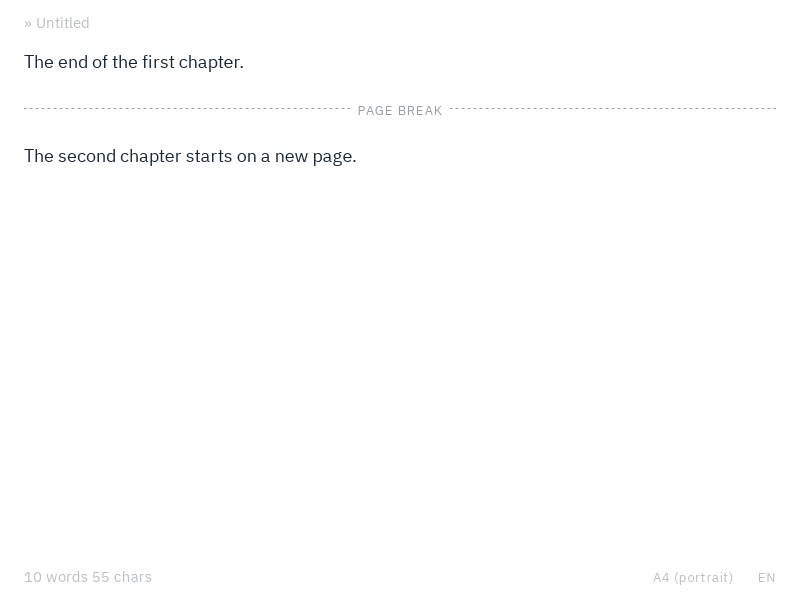
Press Mod Enter to continue on a new page, as in Word and Google Docs. You can also type +++ on an empty line and press Enter. Blank shows the break as a dashed line labelled Page break. To remove it, press Backspace at the start of the line below it.
In the file, a page break is the line <!-- pagebreak -->, which other markdown apps don't show. Blank also reads pandoc's \newpage.
Chapters on new pages
For a book, a thesis or a long report, turn on Heading 1 under New page before in the page setup: every heading 1 then starts a new page, in the PDF and in Word. Turn on more levels, e.g. Heading 2 for sections, and those start new pages too. With the keyboard, ← → move between the headings and Space turns one on or off.
A heading right after a page break stays where it is, so you never get an empty page. In the properties, the setting reads new-page-before: [1, 2].
Where the page setup is kept
The page setup belongs to the document, so it prints the same on every computer. Blank writes it into the properties at the top of the file, and only what differs from your defaults:
---
page:
  size: a5
  orientation: landscape
  margins: 2cm
  header: { left: "{title}", right: "Page {page} of {pages}" }
  footer: { center: "{page}" }
  first-page: plain
  even-pages:
    header: { left: "Page {page} of {pages}", right: "{chapter}" }
  number-style: i
---
You can write these yourself too. new-page-before lists the heading levels that start a new page. header and footer have a left, center and right of one line each, in which {page} is the page number, {pages} the number of pages, {title} and {author} come from the properties, {chapter} is the chapter of the page, {date} the date of the export and {file} the name of the file; write {{ for a brace of your own. first-page is plain for none on the first page, or its own header and footer, and even-pages has the header and footer of even pages. number-style is 1, i or I, and start-number: 0 numbers the pages from 0, e.g. to leave the title page uncounted. size is a3, a4, a5, b5, letter, legal, auto for the paper of your region, or a size like 170mm x 240mm. margins is one length for all four sides, or top, right, bottom and left on their own lines. Lengths are written with their unit: mm, cm, in or pt.
The page setup stays out of the way of your text: the bar at the bottom shows the paper, e.g. A5 (landscape), and a click on it opens the page setup. Edit as Text in the dialog shows all properties of the file, to change the ones the dialog has no settings for.
If a setting can't be used, say a paper size Blank doesn't know, the export uses your default for it and tells you so.
Your defaults
Make This My Default in the page setup keeps the settings for every document that doesn't have its own. Blank saves them in blank.json.
Page setup and Word
Word documents keep their page setup both ways: an export to Word has your paper, orientation, margins, page breaks, chapters on new pages, and your headers and footers with Word's own page numbers, chapter, date and file name, including those of the first and even pages. A Word document you open brings along its own, including its page breaks, section breaks, headers, footers and page numbers. If someone changed the page setup in Word, you get their version.
Word can do a few things Blank's page setup can't hold. When a document has them, Blank tells you right after opening it:
- sections with different page setups: Blank uses the first one,
- a binding margin, which is left out,
- mirrored margins for printing both sides, which become the same on every page,
- pictures, tables or several lines in a header or footer, of which Blank keeps the text on one line,
- page numbers in letters (a, b, c), which become 1, 2, 3.
Headers and footers keep their text, not its formatting: bold, colours or another font are left out, as in the rest of the document.